
How AccessiWidget works on Shopify
Quick answer: install AccessiWidget from the Shopify App Store, enable the app embed on your published theme, save, then choose settings and profiles in the app admin. Most merchants finish setup in a short admin session.
You want shoppers to feel welcome the moment they land. A calm install path matters as much as the tools themselves. Here is the path from App Store click to a live floating control, without touching theme code for a normal Online Store 2.0 theme.
1. Install from the Shopify App Store
Open the AccessiWidget listing. Choose Add app, then approve the permissions Shopify presents. You land in the AccessiWidget admin when the install finishes.
Staff accounts need permission to install apps. Store owners and staff with the Apps permission can complete this step. You do not need a particular Shopify plan for a normal App Store install.
2. Turn the widget on in your theme
Installing the app registers AccessiWidget on your shop. It does not switch the storefront control on by itself. Shopify keeps theme app embeds off until you enable them.
- Go to Online Store, then Themes.
- On your published theme, choose Customise.
- Open App embeds in the theme editor sidebar.
- Find AccessiWidget, toggle it on, then Save.
Save applies to the theme you are editing. Enable the embed on the theme that is actually published so shoppers see the control. If you duplicate or publish another theme later, repeat the embed step for that theme.
3. Confirm it on the storefront
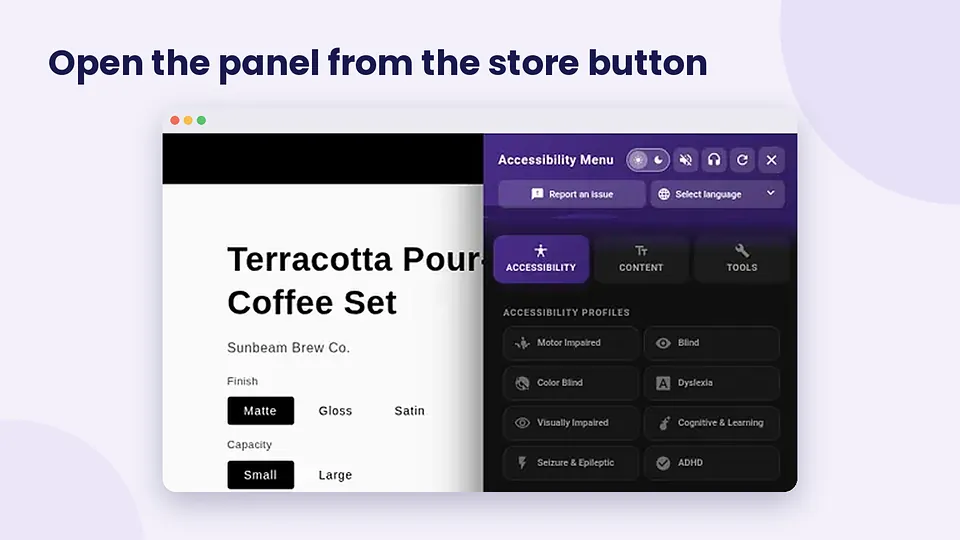
Open your storefront in a new tab. Look for the AccessiWidget trigger, open the panel, and try a setting such as larger text or higher contrast. Check a product page and a collection page as well as the home page.
4. Pick settings and profiles
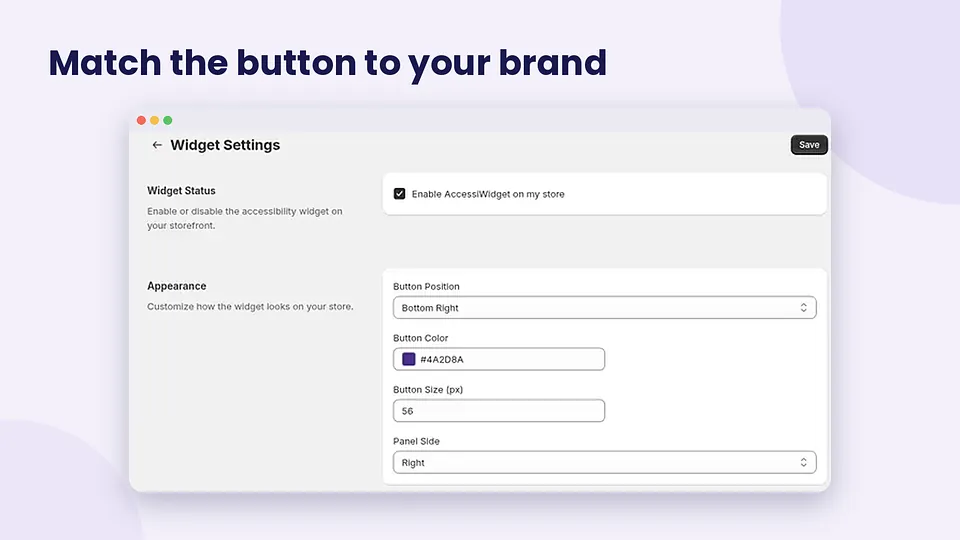
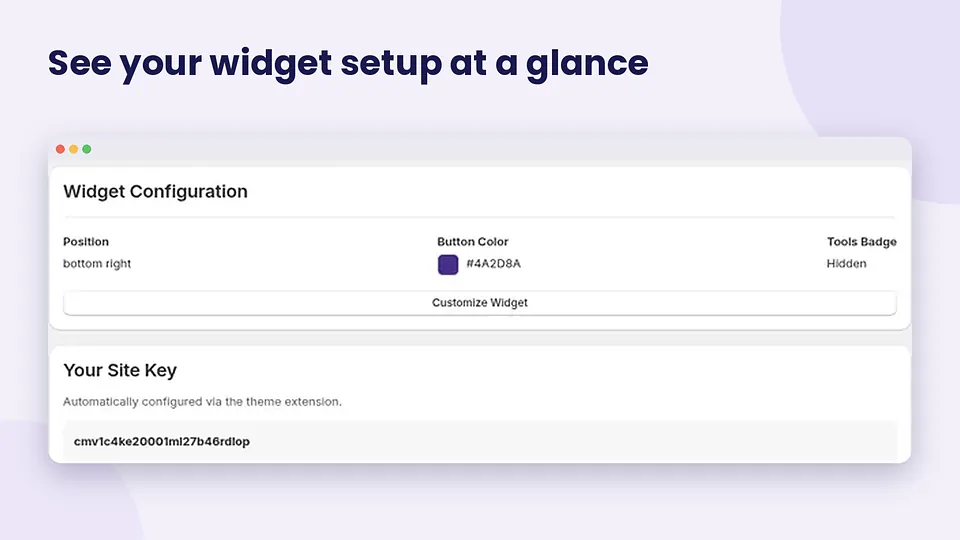
Back in the AccessiWidget admin, set trigger position, colours and related appearance options so the control sits clear of chat widgets and cookie banners. Choose which preset profiles you want available, such as larger text or dyslexia-friendly font options where your plan includes them.
Profiles give shoppers a starting point. They still adjust individual tools from the panel. Merchant tools such as the store scan and the statement page live in the admin as well.
What this does not replace
AccessiWidget helps shoppers adjust the storefront and helps you publish a statement and review common issues. It does not rewrite your theme HTML, write alt text for you, or stand in for legal advice. Pair the widget with clear headings, form labels, and readable default type. See the Shopify accessibility app guide for the longer checklist.
Setup steps mirror common Shopify theme app embed flows used across accessibility widgets: App Store install, then App embeds on, then Save. Always follow the in-app prompts for your current AccessiWidget build if a screen label differs.
FAQ
How do I install an accessibility widget on Shopify?
Install AccessiWidget from the Shopify App Store, approve the permissions, then open your published theme in the theme editor. Turn on the AccessiWidget app embed under App embeds and save. The floating control appears on the live storefront after save.
Does installing the app turn the widget on by itself?
No. Shopify leaves app embeds off until you enable them in the theme editor for the theme you want. Enable the embed on the published theme, then save.
Do I need to edit theme.liquid?
AccessiWidget uses a theme app extension, so you enable the embed in the theme editor. You should not paste a duplicate script into theme.liquid unless support tells you to for a special case.
Where do I change colours, position and profiles?
Open AccessiWidget from Apps in your Shopify admin. Use the settings and profile controls there. Save, then refresh a storefront page to confirm the trigger looks right.
Will the widget stay on if I switch themes?
App embeds are per theme. After you publish a new theme, open that theme in the editor, enable AccessiWidget under App embeds again, and save.
More AccessiWidget guides
Ready to install AccessiWidget?
Open the Shopify App Store listing, add the app, enable the embed, then tune settings for your brand.