
Check Shopify store accessibility with a store scan
Quick answer: AccessiWidget includes a store scan for home, product and collection pages, with tips on how to fix common issues. Free shows the top three issues. Use the results as a work list, then fix theme and content problems the widget cannot rewrite for you.
Guessing where shoppers struggle wastes a week. A scan that points at real pages gives you a calmer starting list: open the report, pick a fix, ship it, then re-check.
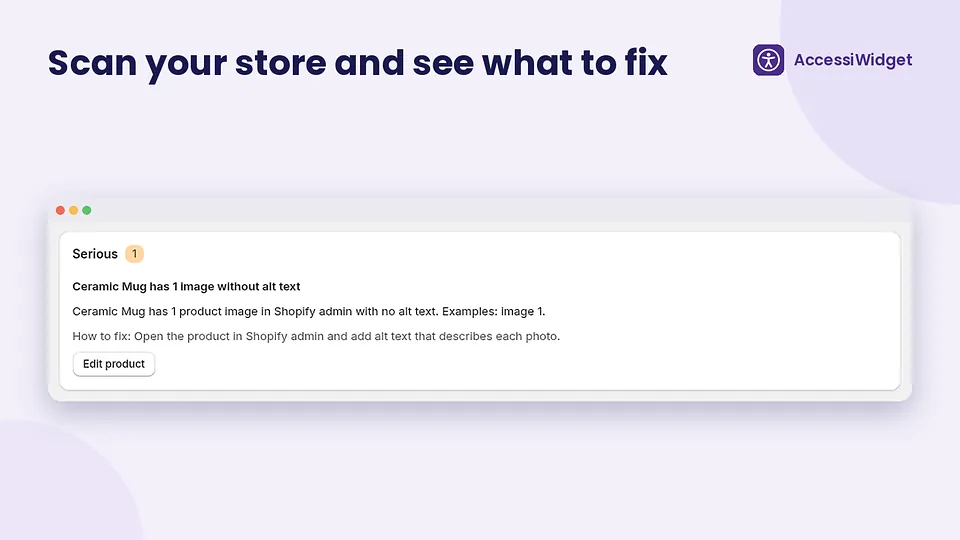
What the scan checks
Per the AccessiWidget Shopify App Store listing, the merchant store scan reviews home, product and collection pages and surfaces common issues with guidance on how to fix them. Run it after install so you are looking at the live published theme, not a draft you never opened.
- Home page templates shoppers hit from ads and search
- Product pages where titles, prices, media and add-to-cart live
- Collection pages where grids, filters and empty states stack up
On the Free plan, the scan highlights the top three issues. That keeps an early pass focused. Paid plans unlock more of the scan output according to the live listing. Confirm your plan on the pricing page.
How to use the results
- Open AccessiWidget in your Shopify admin and run the store scan.
- Read each issue and its fix tip before changing theme code.
- Fix content issues (alt text, link names) in the admin where you can.
- Fix theme issues (focus, contrast tokens, labels) in the theme editor or with your developer.
- Re-run the scan after you publish changes.
Keep a short note of known limitations for your accessibility statement. Honest statements name what you still need to improve.
Checklist of fixes beyond the widget
AccessiWidget helps shoppers adjust presentation and helps you spot common issues. It does not rewrite your HTML or invent alt text. Work this checklist alongside the scan:
- Write meaningful alternative text for informative images; mark decorative images appropriately.
- Keep visible labels on form fields, including newsletter and checkout-adjacent forms your theme adds.
- Check colour contrast in the default theme, not just inside the widget profiles.
- Confirm keyboard focus is visible through header, cart drawer, filters and modals.
- Avoid keyboard traps in popups, age gates and chat widgets.
- Use clear link and button names instead of vague click here patterns.
- Provide captions or transcripts for meaningful video where you rely on spoken content.
- Test on a phone in bright light: tap targets, sticky bars and overlapping floating buttons.
For a longer narrative that pairs the scan with shopper tools, read the Shopify accessibility app guide.
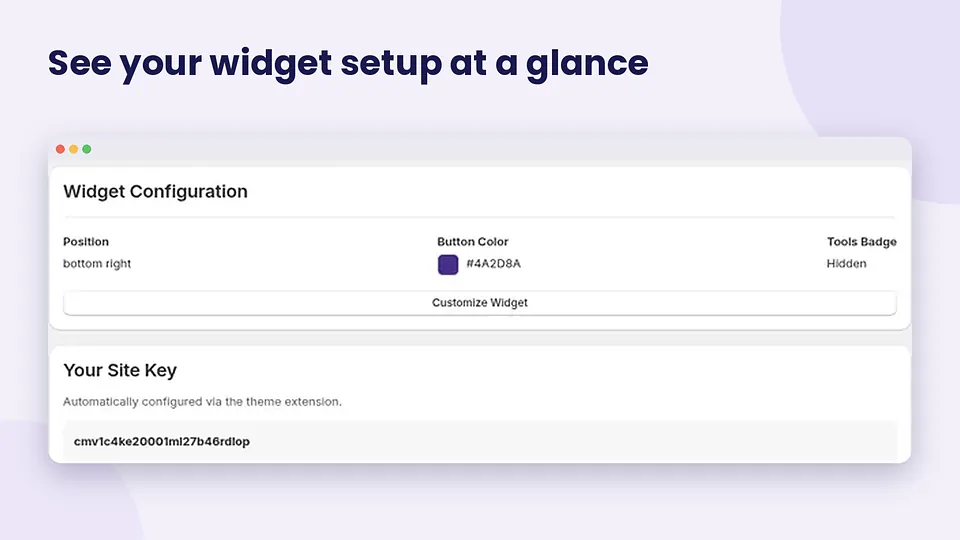
Scan scope and Free plan limits follow the live App Store listing verified for this content package. Re-check the listing if Shopify shows a different card in your region.
FAQ
How do I check Shopify store accessibility with AccessiWidget?
Install AccessiWidget, open the store scan in the app admin, and run it against home, product and collection pages. Review the issues and fix tips, then fix what you can in the theme and content.
Which pages does the scan cover?
The listing describes a store scan across home, product and collection pages, with guidance on how to fix common issues.
What does the Free plan show?
On Free, the scan surfaces the top three issues. Paid plans unlock more of the scan results according to the live App Store listing.
Does a clean scan mean my store is compliant?
No. Automated checks catch common patterns. They miss many real barriers. Treat the scan as a starting checklist, not a legal result.
What should I fix beyond the widget?
Write meaningful alt text, keep form labels visible, maintain readable default contrast, preserve keyboard focus, and avoid traps in modals and drawers. The widget adjusts presentation; it does not replace those basics.
More AccessiWidget guides
Run a store scan on your shop
Install AccessiWidget, enable the embed, then open the scan on home, product and collection pages.